
How to Find Business Emails from Google Maps (Step-by-Step Guide)
If you’re looking for new customers, Google Maps is one of the best sources of business information available online.
Millions of businesses publish their locations, websites, phone numbers, and other contact details on Google Maps every day. The challenge is that Google Maps rarely displays business email addresses directly.
So how can you find business emails efficiently?
In this guide, you’ll learn both the manual method and the automated approach used by professional sales teams.
Why Search Google Maps for Business Emails?
Google Maps contains an enormous amount of publicly available business information.
You can search businesses by:
- Industry
- Category
- City
- State
- Country
Examples include:
- Dentists
- Restaurants
- Manufacturers
- Marketing Agencies
- Roofing Contractors
- Hotels
Instead of buying outdated lead databases, many businesses prefer building their own prospect lists directly from Google Maps.
Can You Find Emails Directly on Google Maps?
The short answer is:
Usually, no.
Google Maps typically displays:
- Business name
- Address
- Phone number
- Website
- Opening hours
- Reviews
Business email addresses are rarely shown.
Fortunately, most companies publish contact information on their own websites.
Method 1 — Find Emails Manually
The traditional workflow looks like this:
- Search a keyword on Google Maps.
- Open each business listing.
- Visit the company website.
- Open the Contact page.
- Copy the email address.
- Paste it into Excel.
- Repeat hundreds of times.
Although simple, this process is extremely time-consuming.
Collecting emails from just 300 businesses may take several hours.
Method 2 — Use GoogleMapsLead
A much faster solution is to automate the process.
GoogleMapsLead searches Google Maps, visits every company website automatically, and extracts publicly available contact information.
The software can collect:
- Business names
- Addresses
- Websites
- Business email addresses
- Phone numbers
- Twitter / X
- TikTok
Instead of opening hundreds of websites manually, GoogleMapsLead completes the entire workflow automatically.
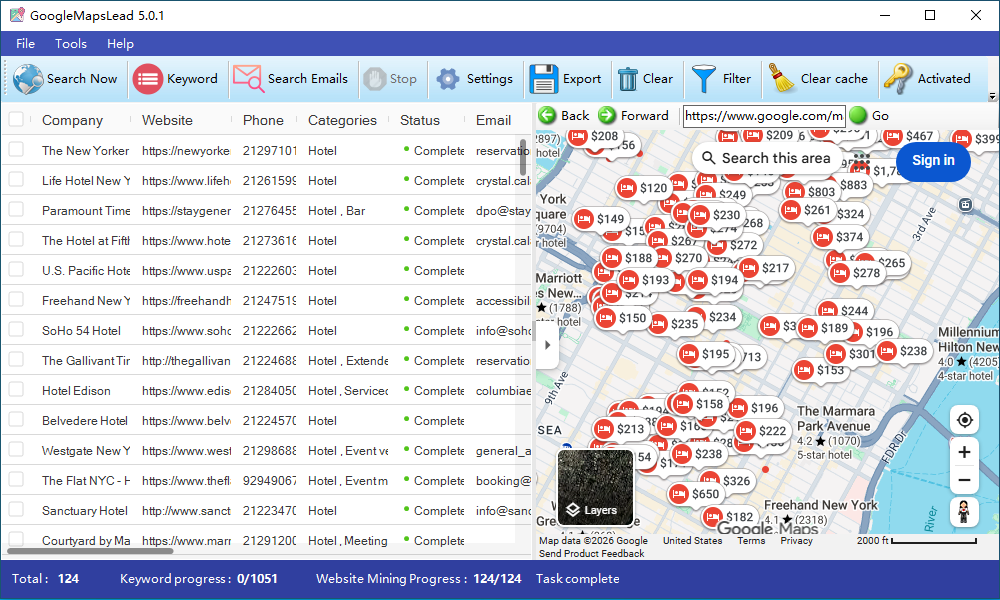
How GoogleMapsLead Finds Business Emails
Unlike basic Google Maps extractors, GoogleMapsLead doesn’t stop after collecting business listings.
It automatically:
- Opens company websites
- Detects Contact pages
- Parses JavaScript-generated content
- Extracts visible email addresses
- Discovers social media profiles
- Organizes all results into structured tables
This significantly reduces manual work while improving lead quality.
Benefits of Automation
Compared with manual research, automation provides several advantages.
| Manual | GoogleMapsLead |
|---|---|
| Open each website manually | Automatic |
| Copy & paste emails | Automatic |
| Organize Excel sheets | Automatic |
| Remove duplicates | Automatic |
| Export leads | One click |
Many users reduce several hours of work to just a few minutes.
Is It Legal?
GoogleMapsLead only collects publicly available business information.
The software does not bypass authentication or access private data.
Users should always comply with applicable privacy regulations and use collected information responsibly.
Tips for Better Results
To improve lead quality:
- Use specific business categories.
- Filter duplicate businesses.
- Export only verified email addresses.
- Update your prospect database regularly.
These practices help create cleaner and more effective sales lists.
Frequently Asked Questions
Does Google Maps show email addresses?
Usually not. Most business emails are available on the company’s official website rather than directly on Google Maps.
Can I collect thousands of businesses?
Yes. GoogleMapsLead is designed for large-scale lead generation while following recommended usage guidelines.
Can I export to Excel?
Yes.
GoogleMapsLead supports exporting data to Excel and CSV for use with CRM systems and email marketing platforms.
Does it work worldwide?
Yes.
GoogleMapsLead includes a global location database covering more than 200 countries and regions.
Final Thoughts
Google Maps is one of the richest sources of business leads, but collecting contact information manually is slow and repetitive.
By combining Google Maps search with automatic website analysis, GoogleMapsLead helps sales teams discover business emails, organize prospect lists, and save valuable time.
If your goal is to generate qualified leads more efficiently, automating the process can dramatically improve productivity.